Networks
Networks
This tab allows you to manage and assign networks from supported cloud providers. You can import and configure networks for use in your infrastructure deployments.
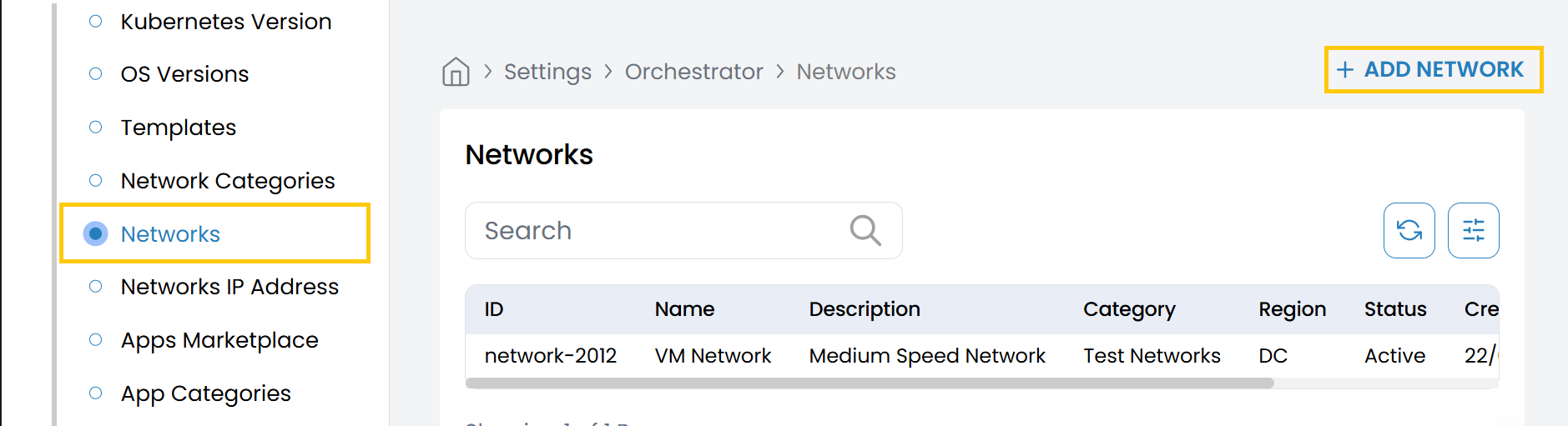
- From the left-hand side of the page under the Orchestrator section, click on Networks to view the list of configured networks.
- To add a new network, click on Add Network.
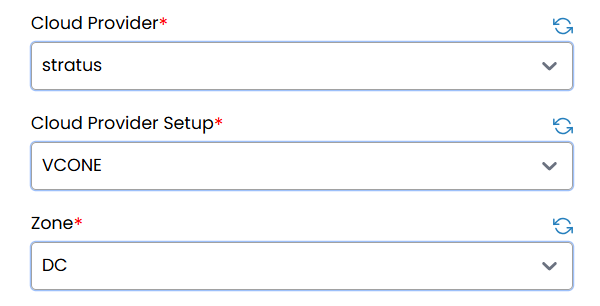
Network Configuration Fields
- Cloud Provider: Select the cloud provider (e.g., AWS, Azure, GCP).
- Cloud Provider Setup: Choose the configured cloud provider setup.
- Zone: Select the availability zone to associate with this network.
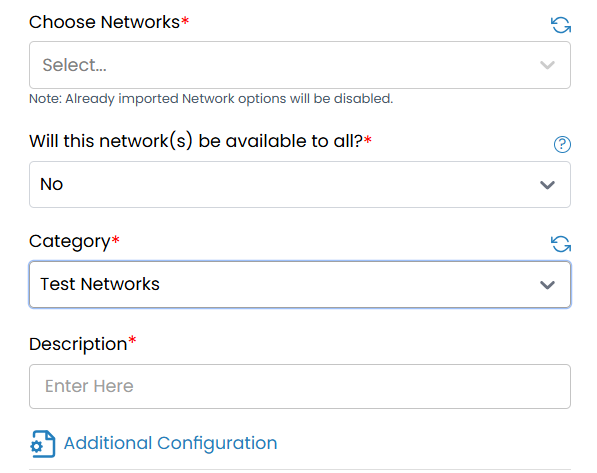
note
Networks that have already been imported will be disabled in the dropdown.
- Choose Networks: Select one or more networks from the list.
- Will this network(s) be available to all?: Choose whether the selected networks should be globally available across environments.
- Category: Select the appropriate network category (e.g., Internal, Public, DMZ).
- Description: Enter a description for the network configuration.
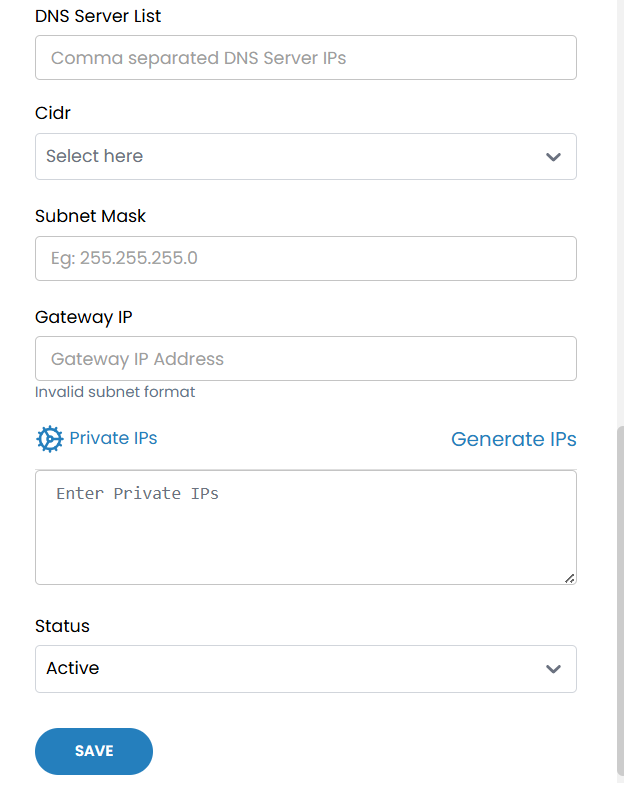
Additional Configuration
- DNS Server List: Enter comma-separated IP addresses of DNS servers (e.g.,
8.8.8.8, 8.8.4.4). - CIDR: Select the CIDR block (e.g.,
192.168.1.0/24) for this network. - Subnet Mask: Enter the subnet mask (e.g.,
255.255.255.0). - Gateway IP: Enter the gateway IP address.
note
Invalid subnet formats will prompt an error message.
-
Private IPs:
- Generate IPs: Automatically generate a range of private IPs based on the selected CIDR.
- Enter Private IPs: Manually enter specific IP addresses as needed.
-
Status: Set the network status:
- Active – Enables the network for use in deployments.
- Inactive – Disables the network without deleting the configuration.
- Click Save to apply and store the network configuration. The network will now be available for use in orchestrating workloads across your selected cloud environments.